


The latest release of the Angular style guide, introduced in version 20, brings significant changes that redefine the standard approach to developing Angular projects. These changes direct the framework to adopt better practices, modern standards, and improve the file structure more efficiently.
The Angular team introduced RFC #58412 at the end of 2024 to gather feedback from the community, and they merged the final version (PR #60809) at the end of April 2025.
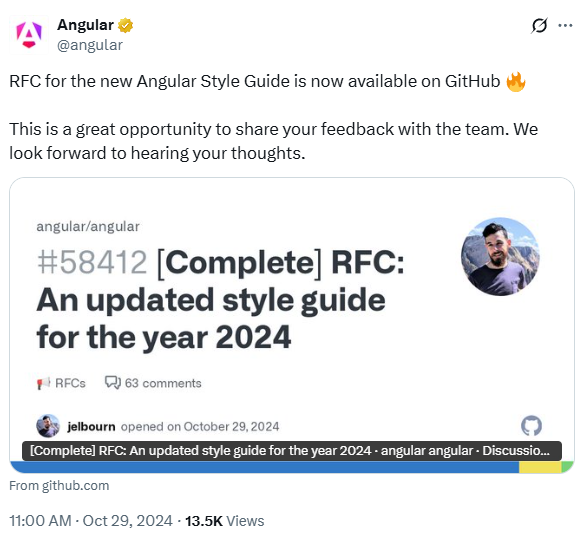
Here are the reasons why they decided to update this guide:
- Make the style guide shorter. The current style guide is 52 (!) pages when printed.
- Simplify guidance that was overly cumbersome or boilerplate-y
- Remove most guidance that doesn’t meaningfully relate to Angular (but sometimes we just can’t help ourselves)
- Focus the style guide more on style choices rather than general Angular best practices
- Modernize guidance to reflect new features and APIs in the framework
- Update prior recommendations based on our observations of Angular development in the real world
The result was a condensed guide that integrates best practices. Among the sections it includes, we can list the following:
- Naming Convention
- Project Structure
- Dependency Injection
- Components and Directives
Naming Convention
Separate words in file names with hyphens
This rule is already well-known; it involves naming files using the kebab-case convention. If your component is called UserProfile the file must be called user-profile.ts.
Another important change is the components’ naming convention. Now they do not carry the suffix Component in the class name and the file name.
***IMAGE***
This change has the most significant impact on the way we program, since .component or d .service will no longer be visible in the project files.
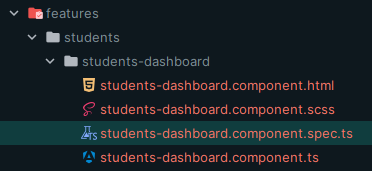
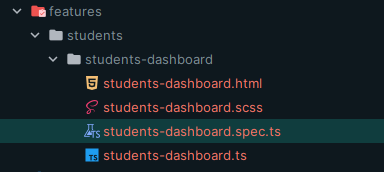
In addition, when running ng generate, it will generate the files without the suffix, like in the following example:

This leads us to seek strategies to differentiate the files in our projects. The good news is that these strategies are also outlined in the new style guide, and we will address them when reviewing the project structures. See the following example, in which we have a component, a service, and a DTO that have the same name.
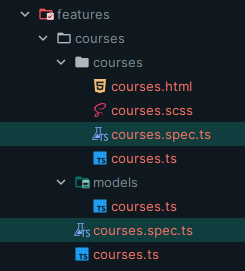
Just for the sake of completeness. This change has generated considerable controversy, as some people strongly dislike it. The good news is that there is an open issue(#30594) to add a schematic that allows us to use the previous convention ng new angular-app --with-suffix
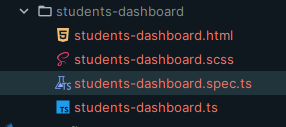
Use the same name for a file’s tests with .spec at the end
This rule is quite well known; it tells us that if we create a unit test file, we must call it the same name as the class we want to test, and add .spec
Match file names to the TypeScript identifier within
This rule tells us that the file name must match the class name. Although it seems obvious, I have seen projects where developers rename the class but not the file, and over time, we end up with names that do not match.
If the file contains more than one identifier, then it should be named with what most describes the code it contains. If any part of the code does not match the name, it is best to separate it into different files.
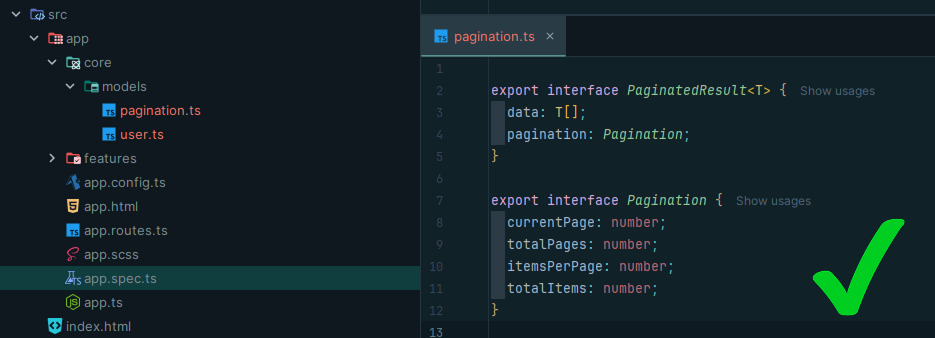
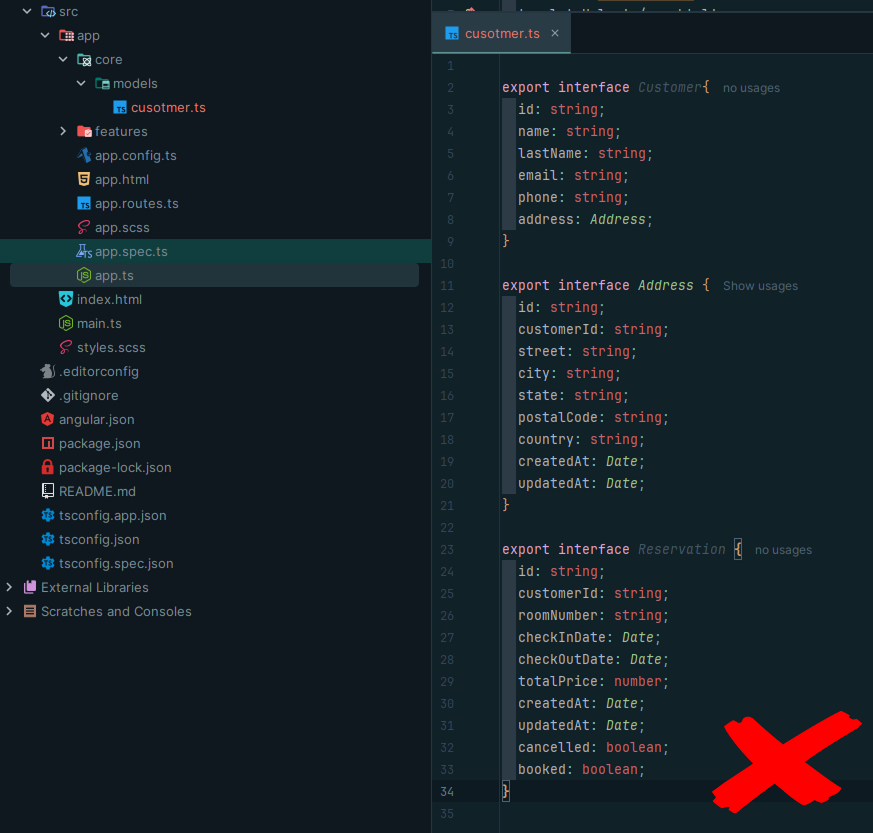
Avoid generic names like helpers.ts, utils.ts or commons.ts
Use the same file name for a component’s TypeScript, template, and styles
This rule is quite well known, especially if you generate your files using schematics. It tells us that the names of the different files of a component (.ts, spec.ts, .html, .css) should be the same.
In conclusion, these changes enable us to standardize the naming of our files. The rules we see here are very similar to those found in other languages, and the best part is that they are easy to apply.
But tell me what do you think about these changes, are you ready to apply them to your new projects?

Leave a Reply